Mark significant events on your charts for better context
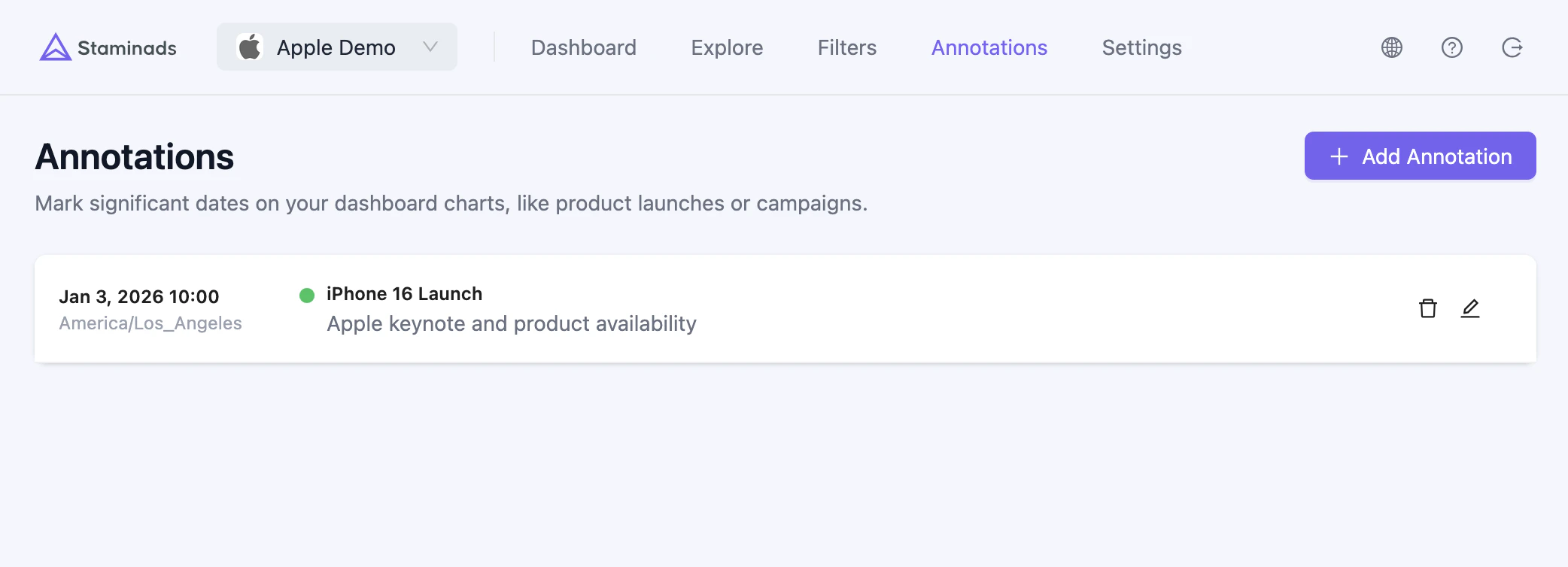
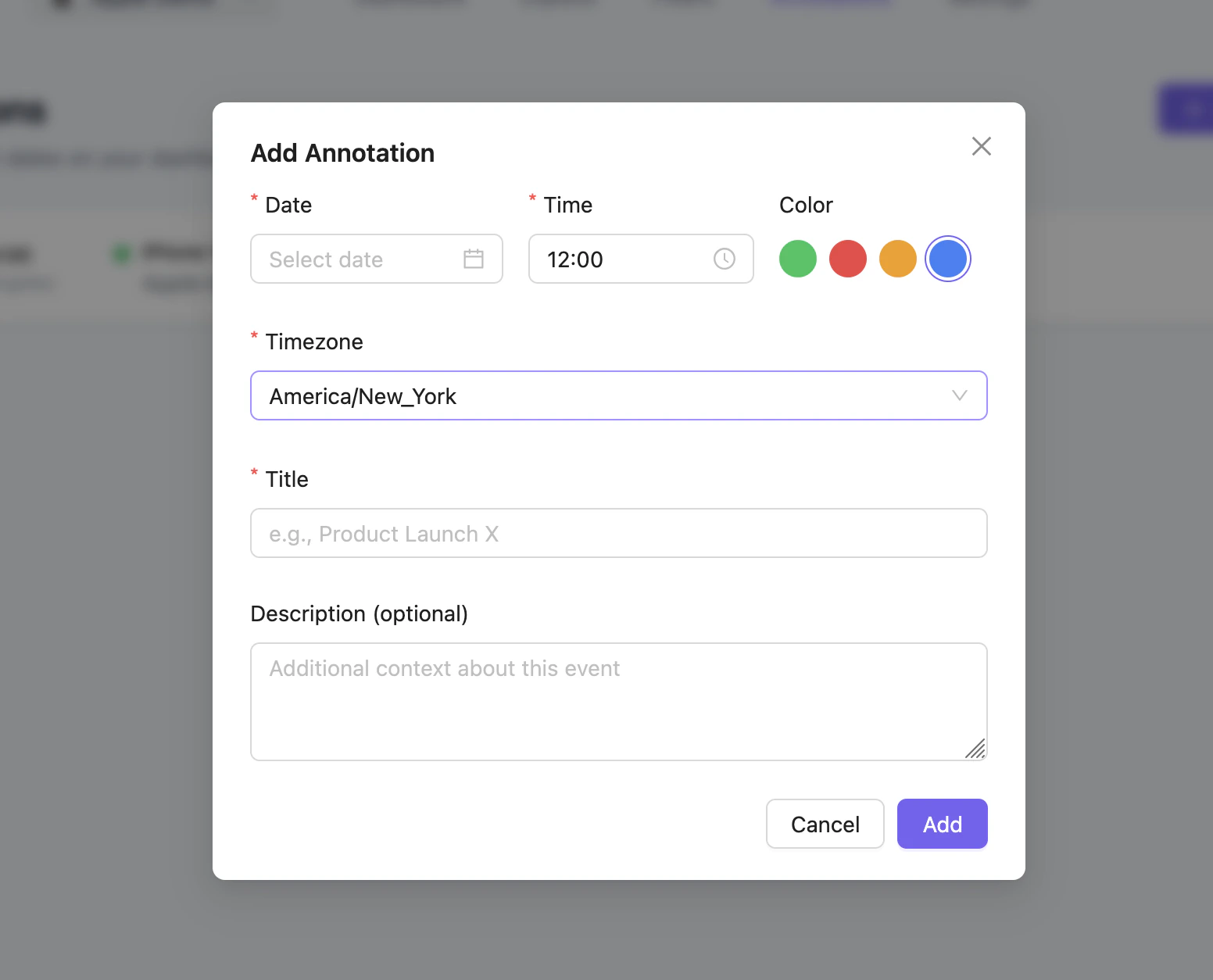
Annotations let you mark significant dates on your charts, helping you correlate traffic patterns with real-world events like campaigns, product launches, or website changes.
Be specific — Include enough detail in the description to understand the event months later
Use accurate times — Set the correct timezone to align annotations with your traffic data
Keep titles short — Use concise titles that fit on the chart without cluttering
Clean up old annotations — Remove annotations that are no longer relevant to keep charts readable
{"docsConfig":{"theme":"mint","$schema":"https://mintlify.com/docs.json","name":"Staminads Documentation","colors":{"primary":"#7763F1","light":"#8B63F1"},"logo":{"light":"https://mintcdn.com/staminads/xmodduBRIzsdtnFQ/logo/logo.svg?fit=max\u0026auto=format\u0026n=xmodduBRIzsdtnFQ\u0026q=85\u0026s=1be6fc9aece1f420d7d7106841235ca0","dark":"https://mintcdn.com/staminads/xmodduBRIzsdtnFQ/logo/logo.svg?fit=max\u0026auto=format\u0026n=xmodduBRIzsdtnFQ\u0026q=85\u0026s=1be6fc9aece1f420d7d7106841235ca0"},"favicon":"/favicon.svg","appearance":{"default":"light","strict":true},"navbar":{"links":[{"label":"Home","href":"https://www.staminads.com/"},{"label":"Support","href":"mailto:hello@staminads.com"},{"label":"Report issue","href":"https://github.com/staminads/staminads/issues"},{"label":"GitHub","href":"https://github.com/staminads/staminads"}]},"footer":{"socials":{}},"styling":{"latex":false},"navigation":{"pages":[]}},"deployment":{"deploymentMetadataValue":{"subdomain":"staminads","hasAudioNarration":false,"actualSubdomain":"staminads","customDomains":["docs.staminads.com"],"gitSource":{"type":"github","owner":"pierre-b","repo":"staminads_docs","deployBranch":"main","contentDirectory":"","isPrivate":true,"mountPath":"","label":""},"chroma":{"liveDeploymentHistoryId":"6a20c5e0b7c442096901c48c","collectionId":"14b00cb4-04c0-47d2-9a7c-535f8000b256","schemaVersion":"v2"},"entitlements":{},"buildId":"6a20c5e0b7c442096901c48c:success","clientVersion":"0.0.3971","searchFilterCounts":[{"language":"default","tag":"API Reference","count":23},{"language":"default","tag":"Filters","count":12},{"language":"default","tag":"Documentation","count":10},{"language":"default","tag":"Get Started","count":10},{"language":"default","tag":"Analytics","count":5},{"language":"default","tag":"Workspaces","count":5},{"language":"default","tag":"Export","count":1}]},"assistantConfig":{},"basePath":"","hasChatPermissions":false,"hasWebMcpPermissions":false,"toggles":[{"name":"kill-isr","enabled":true,"variant":{"name":"disabled","enabled":false,"feature_enabled":true},"impressionData":false},{"name":"agent-mintlify-slack","enabled":true,"variant":{"name":"disabled","enabled":false,"feature_enabled":true},"impressionData":false},{"name":"editor-v7-file-tree","enabled":true,"variant":{"name":"disabled","enabled":false,"feature_enabled":true},"impressionData":false},{"name":"agent-integrations-settings","enabled":true,"variant":{"name":"disabled","enabled":false,"feature_enabled":true},"impressionData":false},{"name":"automations-pr-grouping","enabled":true,"variant":{"name":"disabled","enabled":false,"feature_enabled":true},"impressionData":false},{"name":"custom-prefix","enabled":true,"variant":{"name":"disabled","enabled":false,"feature_enabled":true},"impressionData":false},{"name":"analytics-v7","enabled":true,"variant":{"name":"disabled","enabled":false,"feature_enabled":true},"impressionData":false},{"name":"user-flows-analytics","enabled":true,"variant":{"name":"disabled","enabled":false,"feature_enabled":true},"impressionData":false},{"name":"no-publish-flow","enabled":true,"variant":{"name":"disabled","enabled":false,"feature_enabled":true},"impressionData":false},{"name":"workos-onboarding","enabled":true,"variant":{"name":"disabled","enabled":false,"feature_enabled":true},"impressionData":false},{"name":"llms-txt-v2","enabled":true,"variant":{"name":"disabled","enabled":false,"feature_enabled":true},"impressionData":false},{"name":"pause-universal-search-reconcile","enabled":true,"variant":{"name":"disabled","enabled":false,"feature_enabled":true},"impressionData":false},{"name":"snapshot-serving-live","enabled":true,"variant":{"name":"disabled","enabled":false,"feature_enabled":true},"impressionData":false},{"name":"stripTemperatureMiddleware","enabled":true,"variant":{"name":"disabled","enabled":false,"feature_enabled":true},"impressionData":false},{"name":"per-site-search-delta","enabled":true,"variant":{"name":"disabled","enabled":false,"feature_enabled":true},"impressionData":false},{"name":"support-platform-pylon-zendesk","enabled":true,"variant":{"name":"disabled","enabled":false,"feature_enabled":true},"impressionData":false},{"name":"snapshot-serving","enabled":true,"variant":{"name":"disabled","enabled":false,"feature_enabled":true},"impressionData":false},{"name":"instant-rollback","enabled":true,"variant":{"name":"disabled","enabled":false,"feature_enabled":true},"impressionData":false},{"name":"granular-notifications-server","enabled":true,"variant":{"name":"disabled","enabled":false,"feature_enabled":true},"impressionData":false},{"name":"granular-notifications","enabled":true,"variant":{"name":"disabled","enabled":false,"feature_enabled":true},"impressionData":false},{"name":"editor-private-page-search","enabled":true,"variant":{"name":"disabled","enabled":false,"feature_enabled":true},"impressionData":false},{"name":"automations-fable","enabled":true,"variant":{"name":"disabled","enabled":false,"feature_enabled":true},"impressionData":false},{"name":"fixed-ai-action-pricing","enabled":true,"variant":{"name":"disabled","enabled":false,"feature_enabled":true},"impressionData":false},{"name":"automation-resolve-merge-conflict","enabled":true,"variant":{"name":"disabled","enabled":false,"feature_enabled":true},"impressionData":false},{"name":"scoped-publishing","enabled":true,"variant":{"name":"disabled","enabled":false,"feature_enabled":true},"impressionData":false},{"name":"mintql","enabled":true,"variant":{"name":"disabled","enabled":false,"feature_enabled":true},"impressionData":false},{"name":"page-level-analytics","enabled":true,"variant":{"name":"disabled","enabled":false,"feature_enabled":true},"impressionData":false},{"name":"editor-version-history-v2","enabled":true,"variant":{"name":"disabled","enabled":false,"feature_enabled":true},"impressionData":false},{"name":"editor-nav-generations","enabled":true,"variant":{"name":"disabled","enabled":false,"feature_enabled":true},"impressionData":false},{"name":"billing-page-v2","enabled":true,"variant":{"name":"disabled","enabled":false,"feature_enabled":true},"impressionData":false},{"name":"workspace-projects","enabled":true,"variant":{"name":"disabled","enabled":false,"feature_enabled":true},"impressionData":false},{"name":"assistant-v5","enabled":true,"variant":{"name":"disabled","enabled":false,"feature_enabled":true},"impressionData":false},{"name":"byok-sep-25","enabled":true,"variant":{"name":"disabled","enabled":false,"feature_enabled":true},"impressionData":false},{"name":"fork-pr-previews","enabled":true,"variant":{"name":"disabled","enabled":false,"feature_enabled":true},"impressionData":false},{"name":"revalidation-jwt","enabled":true,"variant":{"name":"disabled","enabled":false,"feature_enabled":true},"impressionData":false},{"name":"vite-origin","enabled":true,"variant":{"name":"disabled","enabled":false,"feature_enabled":true},"impressionData":false},{"name":"editor-agent-model-picker","enabled":true,"variant":{"name":"disabled","enabled":false,"feature_enabled":true},"impressionData":false},{"name":"billing-updated-9-15","enabled":true,"variant":{"name":"disabled","enabled":false,"feature_enabled":true},"impressionData":false},{"name":"workos-sso-scim","enabled":true,"variant":{"name":"disabled","enabled":false,"feature_enabled":true},"impressionData":false},{"name":"hobby-abuse-scan","enabled":true,"variant":{"name":"disabled","enabled":false,"feature_enabled":true},"impressionData":false},{"name":"dashboard-inbox","enabled":true,"variant":{"name":"disabled","enabled":false,"feature_enabled":true},"impressionData":false},{"name":"workos-signup","enabled":true,"variant":{"name":"disabled","enabled":false,"feature_enabled":true},"impressionData":false},{"name":"workos-enabled","enabled":true,"variant":{"name":"disabled","enabled":false,"feature_enabled":true},"impressionData":false}],"isAtlas":false,"googleFontsInlined":false},"customCss":[],"page":{"pagePath":"annotations","slug":"/annotations","pageMetadata":{"title":"Annotations","description":"Mark significant events on your charts for better context","sidebarTitle":"Annotations","icon":"bookmark","iconType":"duotone","href":"/annotations","hidden":false},"description":{"compiledSource":"\"use strict\";\nconst {jsx: _jsx} = arguments[0];\nconst {useMDXComponents: _provideComponents} = arguments[0];\nfunction _createMdxContent(props) {\n const _components = {\n p: \"p\",\n ..._provideComponents(),\n ...props.components\n };\n return _jsx(_components.p, {\n children: \"Mark significant events on your charts for better context\"\n });\n}\nfunction MDXContent(props = {}) {\n const {wrapper: MDXLayout} = {\n ..._provideComponents(),\n ...props.components\n };\n return MDXLayout ? _jsx(MDXLayout, {\n ...props,\n children: _jsx(_createMdxContent, {\n ...props\n })\n }) : _createMdxContent(props);\n}\nreturn {\n default: MDXContent\n};\n","frontmatter":{},"scope":{}},"pageType":"default","mdx":{"mdxSource":{"compiledSource":"\"use strict\";const{Fragment:_Fragment,jsx:_jsx,jsxs:_jsxs}=arguments[0];const{useMDXComponents:_provideComponents}=arguments[0];function _createMdxContent(props){const _components={li:`li`,ol:`ol`,p:`p`,strong:`strong`,tbody:`tbody`,td:`td`,th:`th`,thead:`thead`,tr:`tr`,ul:`ul`,..._provideComponents(),...props.components},{Frame,Heading,OptimizedImage,Table,Tip}=_components;if(!Frame)_missingMdxReference(`Frame`,true);if(!Heading)_missingMdxReference(`Heading`,true);if(!OptimizedImage)_missingMdxReference(`OptimizedImage`,true);if(!Table)_missingMdxReference(`Table`,true);if(!Tip)_missingMdxReference(`Tip`,true);return _jsxs(_Fragment,{children:[_jsx(_components.p,{children:`Annotations let you mark significant dates on your charts, helping you correlate traffic patterns with real-world events like campaigns, product launches, or website changes.`}),`\n`,_jsx(Frame,{children:_jsx(OptimizedImage,{style:{borderRadius:`0.5rem`},src:`https://mintcdn.com/staminads/E6ClmUvRjKDS4bnY/images/annotations.png?fit=max\u0026auto=format\u0026n=E6ClmUvRjKDS4bnY\u0026q=85\u0026s=b65f4eeb7dd9dae0ce06481c369cb296`,alt:`Chart with annotations`,\"data-og-width\":`2084`,width:`2084`,\"data-og-height\":`754`,height:`754`,\"data-path\":`images/annotations.png`,\"data-optimize\":`true`,\"data-opv\":`3`,srcset:`https://mintcdn.com/staminads/E6ClmUvRjKDS4bnY/images/annotations.png?w=280\u0026fit=max\u0026auto=format\u0026n=E6ClmUvRjKDS4bnY\u0026q=85\u0026s=e1c154fe858ec3b463ff9e3ad78c0415 280w, https://mintcdn.com/staminads/E6ClmUvRjKDS4bnY/images/annotations.png?w=560\u0026fit=max\u0026auto=format\u0026n=E6ClmUvRjKDS4bnY\u0026q=85\u0026s=eb6d13b06e44b715b55ece8776ab49a2 560w, https://mintcdn.com/staminads/E6ClmUvRjKDS4bnY/images/annotations.png?w=840\u0026fit=max\u0026auto=format\u0026n=E6ClmUvRjKDS4bnY\u0026q=85\u0026s=fcf8802a33a1dd2f7d450d477b0a8ef9 840w, https://mintcdn.com/staminads/E6ClmUvRjKDS4bnY/images/annotations.png?w=1100\u0026fit=max\u0026auto=format\u0026n=E6ClmUvRjKDS4bnY\u0026q=85\u0026s=f8b42d6e90ae2c6fb032f0212d9a03af 1100w, https://mintcdn.com/staminads/E6ClmUvRjKDS4bnY/images/annotations.png?w=1650\u0026fit=max\u0026auto=format\u0026n=E6ClmUvRjKDS4bnY\u0026q=85\u0026s=7ad9af62a8d42e3db089f3148fc622bc 1650w, https://mintcdn.com/staminads/E6ClmUvRjKDS4bnY/images/annotations.png?w=2500\u0026fit=max\u0026auto=format\u0026n=E6ClmUvRjKDS4bnY\u0026q=85\u0026s=feed7f1ddd67153f44e4f9cdd3ef741b 2500w`})}),`\n`,_jsx(Heading,{level:`2`,id:`use-cases`,children:`Use Cases`}),`\n`,_jsxs(_components.ul,{children:[`\n`,_jsxs(_components.li,{children:[_jsx(_components.strong,{children:`Campaign launches`}),` — Mark when a new ad campaign started to see its impact on traffic`]}),`\n`,_jsxs(_components.li,{children:[_jsx(_components.strong,{children:`Website changes`}),` — Track deployments, redesigns, or content updates`]}),`\n`,_jsxs(_components.li,{children:[_jsx(_components.strong,{children:`External events`}),` — Note industry events, holidays, or competitor actions`]}),`\n`,_jsxs(_components.li,{children:[_jsx(_components.strong,{children:`Technical issues`}),` — Document outages or tracking issues for future reference`]}),`\n`,_jsxs(_components.li,{children:[_jsx(_components.strong,{children:`Seasonal patterns`}),` — Mark recurring events to compare year-over-year`]}),`\n`]}),`\n`,_jsx(Heading,{level:`2`,id:`creating-an-annotation`,children:`Creating an Annotation`}),`\n`,_jsxs(_components.p,{children:[`Navigate to `,_jsx(_components.strong,{children:`Settings > Annotations`}),` in your workspace to manage annotations.`]}),`\n`,_jsx(_components.p,{children:`Each annotation includes:`}),`\n`,_jsxs(Table,{children:[_jsx(_components.thead,{children:_jsxs(_components.tr,{children:[_jsx(_components.th,{children:`Field`}),_jsx(_components.th,{children:`Description`})]})}),_jsxs(_components.tbody,{children:[_jsxs(_components.tr,{children:[_jsx(_components.td,{children:_jsx(_components.strong,{children:`Date`})}),_jsx(_components.td,{children:`The date of the event (YYYY-MM-DD format)`})]}),_jsxs(_components.tr,{children:[_jsx(_components.td,{children:_jsx(_components.strong,{children:`Time`})}),_jsx(_components.td,{children:`The specific time of the event (HH:mm format)`})]}),_jsxs(_components.tr,{children:[_jsx(_components.td,{children:_jsx(_components.strong,{children:`Timezone`})}),_jsx(_components.td,{children:`The timezone for the event (e.g., America/New_York)`})]}),_jsxs(_components.tr,{children:[_jsx(_components.td,{children:_jsx(_components.strong,{children:`Title`})}),_jsx(_components.td,{children:`A short label displayed on the chart`})]}),_jsxs(_components.tr,{children:[_jsx(_components.td,{children:_jsx(_components.strong,{children:`Description`})}),_jsx(_components.td,{children:`Optional details about the event`})]}),_jsxs(_components.tr,{children:[_jsx(_components.td,{children:_jsx(_components.strong,{children:`Color`})}),_jsx(_components.td,{children:`Custom color for the annotation marker (defaults to #7763f1)`})]})]})]}),`\n`,_jsx(Frame,{children:_jsx(OptimizedImage,{style:{borderRadius:`0.5rem`},src:`https://mintcdn.com/staminads/E6ClmUvRjKDS4bnY/images/annotation_form.png?fit=max\u0026auto=format\u0026n=E6ClmUvRjKDS4bnY\u0026q=85\u0026s=7bd3f193c8e027d99f74475b030bedd4`,alt:`Annotation creation form`,\"data-og-width\":`1552`,width:`1552`,\"data-og-height\":`1254`,height:`1254`,\"data-path\":`images/annotation_form.png`,\"data-optimize\":`true`,\"data-opv\":`3`,srcset:`https://mintcdn.com/staminads/E6ClmUvRjKDS4bnY/images/annotation_form.png?w=280\u0026fit=max\u0026auto=format\u0026n=E6ClmUvRjKDS4bnY\u0026q=85\u0026s=2bbf151fb0f00889c0fd6758f38b0b06 280w, https://mintcdn.com/staminads/E6ClmUvRjKDS4bnY/images/annotation_form.png?w=560\u0026fit=max\u0026auto=format\u0026n=E6ClmUvRjKDS4bnY\u0026q=85\u0026s=f7912c706d6a3deb5832cf4da954eccc 560w, https://mintcdn.com/staminads/E6ClmUvRjKDS4bnY/images/annotation_form.png?w=840\u0026fit=max\u0026auto=format\u0026n=E6ClmUvRjKDS4bnY\u0026q=85\u0026s=43180179ff325231f3372373f305427c 840w, https://mintcdn.com/staminads/E6ClmUvRjKDS4bnY/images/annotation_form.png?w=1100\u0026fit=max\u0026auto=format\u0026n=E6ClmUvRjKDS4bnY\u0026q=85\u0026s=10d5526949b09409f96e004111e10d14 1100w, https://mintcdn.com/staminads/E6ClmUvRjKDS4bnY/images/annotation_form.png?w=1650\u0026fit=max\u0026auto=format\u0026n=E6ClmUvRjKDS4bnY\u0026q=85\u0026s=7cd9cf3660deb328227303d92754a8a3 1650w, https://mintcdn.com/staminads/E6ClmUvRjKDS4bnY/images/annotation_form.png?w=2500\u0026fit=max\u0026auto=format\u0026n=E6ClmUvRjKDS4bnY\u0026q=85\u0026s=21d3520e245d933d899c74ffa365896f 2500w`})}),`\n`,_jsx(Heading,{level:`2`,id:`viewing-annotations`,children:`Viewing Annotations`}),`\n`,_jsx(_components.p,{children:`Annotations appear as vertical markers on time-series charts. Hover over a marker to see the annotation details.`}),`\n`,_jsx(Tip,{children:_jsx(_components.p,{children:`Use consistent colors to categorize your annotations. For example, use blue for campaigns, green for releases, and red for incidents.`})}),`\n`,_jsx(Heading,{level:`2`,id:`best-practices`,children:`Best Practices`}),`\n`,_jsxs(_components.ol,{children:[`\n`,_jsxs(_components.li,{children:[_jsx(_components.strong,{children:`Be specific`}),` — Include enough detail in the description to understand the event months later`]}),`\n`,_jsxs(_components.li,{children:[_jsx(_components.strong,{children:`Use accurate times`}),` — Set the correct timezone to align annotations with your traffic data`]}),`\n`,_jsxs(_components.li,{children:[_jsx(_components.strong,{children:`Keep titles short`}),` — Use concise titles that fit on the chart without cluttering`]}),`\n`,_jsxs(_components.li,{children:[_jsx(_components.strong,{children:`Clean up old annotations`}),` — Remove annotations that are no longer relevant to keep charts readable`]}),`\n`]})]})}function MDXContent(props={}){const{wrapper:MDXLayout}={..._provideComponents(),...props.components};return MDXLayout?_jsx(MDXLayout,{...props,children:_jsx(_createMdxContent,{...props})}):_createMdxContent(props)}return{default:MDXContent};function _missingMdxReference(id,component){throw new Error(`Expected `+(component?`component`:`object`)+\" `\"+id+\"` to be defined: you likely forgot to import, pass, or provide it.\")}","frontmatter":{},"scope":{"config":{},"pageMetadata":{"title":"Annotations","description":"Mark significant events on your charts for better context","sidebarTitle":"Annotations","icon":"bookmark","iconType":"duotone","href":"/annotations","hidden":false}}},"mdxSourceWithNoJs":null},"mdxExtracts":{"tableOfContents":[{"title":"Use Cases","slug":"use-cases","depth":2,"children":[]},{"title":"Creating an Annotation","slug":"creating-an-annotation","depth":2,"children":[]},{"title":"Viewing Annotations","slug":"viewing-annotations","depth":2,"children":[]},{"title":"Best Practices","slug":"best-practices","depth":2,"children":[]}],"codeExamples":{}},"jsLinks":[],"subdomain":"staminads","siteName":"Staminads Documentation","title":"Annotations - Staminads Documentation","navMaps":{"firstHrefInVersion":{},"firstHrefInLanguage":{}},"lastModified":"2026-01-25T18:56:25.604Z","originalFileLocation":"annotations.mdx"},"headHtml":"\u003cscript data-mint-head>(function(){var d=document.documentElement,p=\"light\";if(!p){try{p=localStorage.getItem(\"isDarkMode\")}catch(e){}if(p==='true')p='dark';else if(p==='false')p='light';if(p!=='light'\u0026\u0026p!=='dark'\u0026\u0026p!=='system')p=\"light\"}var r=p==='system'?(matchMedia(\"(prefers-color-scheme: dark)\").matches?'dark':'light'):p;d.classList.remove(r==='dark'?'light':'dark');d.classList.add(r);d.setAttribute(\"data-theme-preference\",p)})();\u003c/script>\u003cmeta data-mint-head name=\"description\" content=\"Mark significant events on your charts for better context\">\u003cmeta data-mint-head name=\"application-name\" content=\"Staminads Documentation\">\u003cmeta data-mint-head name=\"generator\" content=\"Mintlify\">\u003clink data-mint-head rel=\"icon\" type=\"image/png\" sizes=\"192x192\" href=\"/mintlify-assets/_mintlify/favicons/staminads/-FNXJklUnV34uqRV/_generated/favicon/android-chrome-192x192.png\" media=\"(prefers-color-scheme: light)\">\u003clink data-mint-head rel=\"apple-touch-icon\" type=\"image/png\" sizes=\"180x180\" href=\"/mintlify-assets/_mintlify/favicons/staminads/-FNXJklUnV34uqRV/_generated/favicon/apple-touch-icon.png\">\u003clink data-mint-head rel=\"icon\" type=\"image/png\" sizes=\"16x16\" href=\"/mintlify-assets/_mintlify/favicons/staminads/-FNXJklUnV34uqRV/_generated/favicon/favicon-16x16.png\" media=\"(prefers-color-scheme: light)\">\u003clink data-mint-head rel=\"icon\" type=\"image/png\" sizes=\"32x32\" href=\"/mintlify-assets/_mintlify/favicons/staminads/-FNXJklUnV34uqRV/_generated/favicon/favicon-32x32.png\" media=\"(prefers-color-scheme: light)\">\u003clink data-mint-head rel=\"shortcut icon\" type=\"image/x-icon\" href=\"/mintlify-assets/_mintlify/favicons/staminads/-FNXJklUnV34uqRV/_generated/favicon/favicon.ico\" media=\"(prefers-color-scheme: light)\">\u003clink data-mint-head rel=\"icon\" type=\"image/png\" sizes=\"192x192\" href=\"/mintlify-assets/_mintlify/favicons/staminads/-FNXJklUnV34uqRV/_generated/favicon-dark/android-chrome-192x192.png\" media=\"(prefers-color-scheme: dark)\">\u003clink data-mint-head rel=\"icon\" type=\"image/png\" sizes=\"16x16\" href=\"/mintlify-assets/_mintlify/favicons/staminads/-FNXJklUnV34uqRV/_generated/favicon-dark/favicon-16x16.png\" media=\"(prefers-color-scheme: dark)\">\u003clink data-mint-head rel=\"icon\" type=\"image/png\" sizes=\"32x32\" href=\"/mintlify-assets/_mintlify/favicons/staminads/-FNXJklUnV34uqRV/_generated/favicon-dark/favicon-32x32.png\" media=\"(prefers-color-scheme: dark)\">\u003clink data-mint-head rel=\"shortcut icon\" type=\"image/x-icon\" href=\"/mintlify-assets/_mintlify/favicons/staminads/-FNXJklUnV34uqRV/_generated/favicon-dark/favicon.ico\" media=\"(prefers-color-scheme: dark)\">\u003cmeta data-mint-head property=\"og:title\" content=\"Annotations - Staminads Documentation\">\u003cmeta data-mint-head property=\"og:description\" content=\"Mark significant events on your charts for better context\">\u003cmeta data-mint-head property=\"og:site_name\" content=\"Staminads Documentation\">\u003cmeta data-mint-head property=\"og:url\" content=\"https://docs.staminads.com/annotations\">\u003cmeta data-mint-head property=\"og:type\" content=\"website\">\u003cmeta data-mint-head property=\"og:image\" content=\"https://staminads.mintlify.app/_mintlify/api/og/v2?division=Get+Started\u0026amp;title=Annotations\u0026amp;description=Mark+significant+events+on+your+charts+for+better+context\u0026amp;theme=18e24c352bfd0d59ebadc206\u0026amp;signature=6a154a6ba5b0988b6825b39cb0f857953a69c222be87523c891fe44e058f5092\">\u003cmeta data-mint-head property=\"og:image:width\" content=\"1200\">\u003cmeta data-mint-head property=\"og:image:height\" content=\"630\">\u003cmeta data-mint-head name=\"twitter:card\" content=\"summary_large_image\">\u003cmeta data-mint-head name=\"twitter:title\" content=\"Annotations - Staminads Documentation\">\u003cmeta data-mint-head name=\"twitter:description\" content=\"Mark significant events on your charts for better context\">\u003cmeta data-mint-head name=\"twitter:image\" content=\"https://staminads.mintlify.app/_mintlify/api/og/v2?division=Get+Started\u0026amp;title=Annotations\u0026amp;description=Mark+significant+events+on+your+charts+for+better+context\u0026amp;theme=18e24c352bfd0d59ebadc206\u0026amp;signature=6a154a6ba5b0988b6825b39cb0f857953a69c222be87523c891fe44e058f5092\">\u003cmeta data-mint-head name=\"twitter:image:width\" content=\"1200\">\u003cmeta data-mint-head name=\"twitter:image:height\" content=\"630\">\u003cmeta data-mint-head name=\"msapplication-config\" content=\"/mintlify-assets/_mintlify/favicons/staminads/-FNXJklUnV34uqRV/_generated/favicon/browserconfig.xml\">\u003cmeta data-mint-head name=\"apple-mobile-web-app-title\" content=\"Staminads Documentation\">\u003cmeta data-mint-head name=\"msapplication-TileColor\" content=\"#7763F1\">\u003clink data-mint-head rel=\"canonical\" href=\"https://docs.staminads.com/annotations\">\u003clink data-mint-head rel=\"alternate\" type=\"application/xml\" href=\"/sitemap.xml\">\u003clink data-mint-head rel=\"alternate\" type=\"text/markdown\" href=\"/annotations.md\">\u003cscript data-mint-head type=\"application/ld+json\">{\"@context\":\"https://schema.org\",\"@graph\":[{\"@type\":\"Organization\",\"@id\":\"https://docs.staminads.com/#organization\",\"name\":\"Staminads Documentation\",\"url\":\"https://docs.staminads.com\",\"logo\":{\"@type\":\"ImageObject\",\"url\":\"https://mintcdn.com/staminads/xmodduBRIzsdtnFQ/logo/logo.svg?fit=max\u0026auto=format\u0026n=xmodduBRIzsdtnFQ\u0026q=85\u0026s=1be6fc9aece1f420d7d7106841235ca0\"}},{\"@type\":\"WebSite\",\"@id\":\"https://docs.staminads.com#website\",\"name\":\"Staminads Documentation\",\"url\":\"https://docs.staminads.com\",\"publisher\":{\"@id\":\"https://docs.staminads.com/#organization\"}},{\"@type\":\"WebPage\",\"@id\":\"https://docs.staminads.com/annotations#webpage\",\"url\":\"https://docs.staminads.com/annotations\",\"name\":\"Annotations\",\"description\":\"Mark significant events on your charts for better context\",\"dateModified\":\"2026-01-25T18:56:25.604Z\",\"isPartOf\":{\"@id\":\"https://docs.staminads.com#website\"},\"breadcrumb\":{\"@id\":\"https://docs.staminads.com/annotations#breadcrumb\"}},{\"@type\":\"BreadcrumbList\",\"@id\":\"https://docs.staminads.com/annotations#breadcrumb\",\"itemListElement\":[{\"@type\":\"ListItem\",\"position\":1,\"name\":\"Get Started\",\"item\":\"https://docs.staminads.com/introduction\"},{\"@type\":\"ListItem\",\"position\":2,\"name\":\"Annotations\",\"item\":\"https://docs.staminads.com/annotations\"}]},{\"@type\":[\"Article\",\"TechArticle\"],\"@id\":\"https://docs.staminads.com/annotations#article\",\"headline\":\"Annotations\",\"name\":\"Annotations\",\"description\":\"Mark significant events on your charts for better context\",\"url\":\"https://docs.staminads.com/annotations\",\"mainEntityOfPage\":{\"@id\":\"https://docs.staminads.com/annotations#webpage\"},\"dateModified\":\"2026-01-25T18:56:25.604Z\",\"publisher\":{\"@id\":\"https://docs.staminads.com/#organization\"},\"isPartOf\":{\"@id\":\"https://docs.staminads.com#website\"}}]}\u003c/script>\u003cscript data-mint-head type=\"application/ld+json\">{\"@context\":\"https://schema.org\",\"@type\":\"WebSite\",\"name\":\"Staminads Documentation\",\"creator\":{\"@type\":\"Organization\",\"name\":\"Mintlify\",\"url\":\"https://mintlify.com\"}}\u003c/script>","siteName":"Staminads Documentation","nav":{"global":null,"tabs":[{"tab":"Documentation","groups":[{"group":"Get Started","pages":[{"title":"Introduction","sidebarTitle":"Introduction","icon":"house","iconType":"duotone","href":"/introduction"},{"title":"Installation","sidebarTitle":"Installation","icon":"server","iconType":"duotone","href":"/installation"},{"title":"Web SDK","sidebarTitle":"Web SDK","icon":"code","iconType":"duotone","href":"/web-sdk"},{"title":"Traffic Categorization","sidebarTitle":"Traffic Categorization","icon":"filter","iconType":"duotone","href":"/traffic-categorization"},{"title":"Metrics \u0026 Dimensions","sidebarTitle":"Metrics \u0026 Dimensions","icon":"cube","iconType":"duotone","href":"/metrics-dimensions"},{"title":"Dashboard","sidebarTitle":"Dashboard","icon":"chart-line","iconType":"duotone","href":"/dashboard"},{"title":"Goals","sidebarTitle":"Goals","icon":"bullseye","iconType":"duotone","href":"/goals"},{"title":"Explore Report","description":"Deep dive into your data to find insights","sidebarTitle":"Explore Report","icon":"magnifying-glass-chart","iconType":"duotone","href":"/explore-report"},{"title":"Annotations","sidebarTitle":"Annotations","icon":"bookmark","iconType":"duotone","href":"/annotations"},{"title":"Users \u0026 API Keys","description":"Manage team access and API credentials for your workspace","sidebarTitle":"Users \u0026 API Keys","icon":"user-lock","iconType":"duotone","href":"/users-api-keys"}]}]},{"tab":"API Reference","pages":[{"title":"API Reference","href":"/api-reference/workspaces/list-workspaces-for-current-user"}]}]},"title":"Annotations - Staminads Documentation","buildId":"dpl_DFJrtvUi8HS5F9nkooKuDJsuD5BM","deploymentId":"dpl_DFJrtvUi8HS5F9nkooKuDJsuD5BM","dynamics":["07c022d89b","a74be98ba7"],"chunks":["Frame-COGkNuA6.js","DynamicMarkdown-85clUA0i.js","zoom-image-lightbox-BZxD9MAj.js","lightbox-handle-r17bVUz3.js"]}